
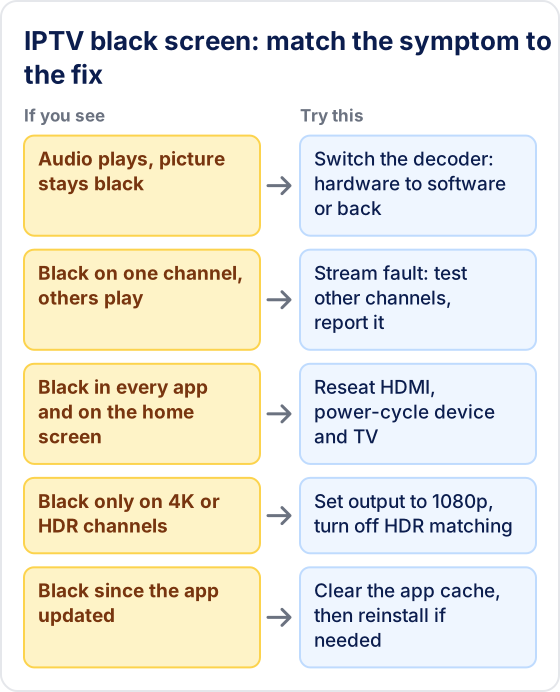
A black screen on IPTV usually means the stream is loading but the video codec is failing to decode. Try switching the player's decoder from hardware to software, or vice versa, in its playback settings — this resolves most cases. If the audio plays but the picture stays black, it is almost certainly a decoder mismatch. If neither audio nor video appears, the channel itself is likely offline on the provider's server.
What causes IPTV black screen?
- ▸ Wrong video player / decoder setting in your IPTV app
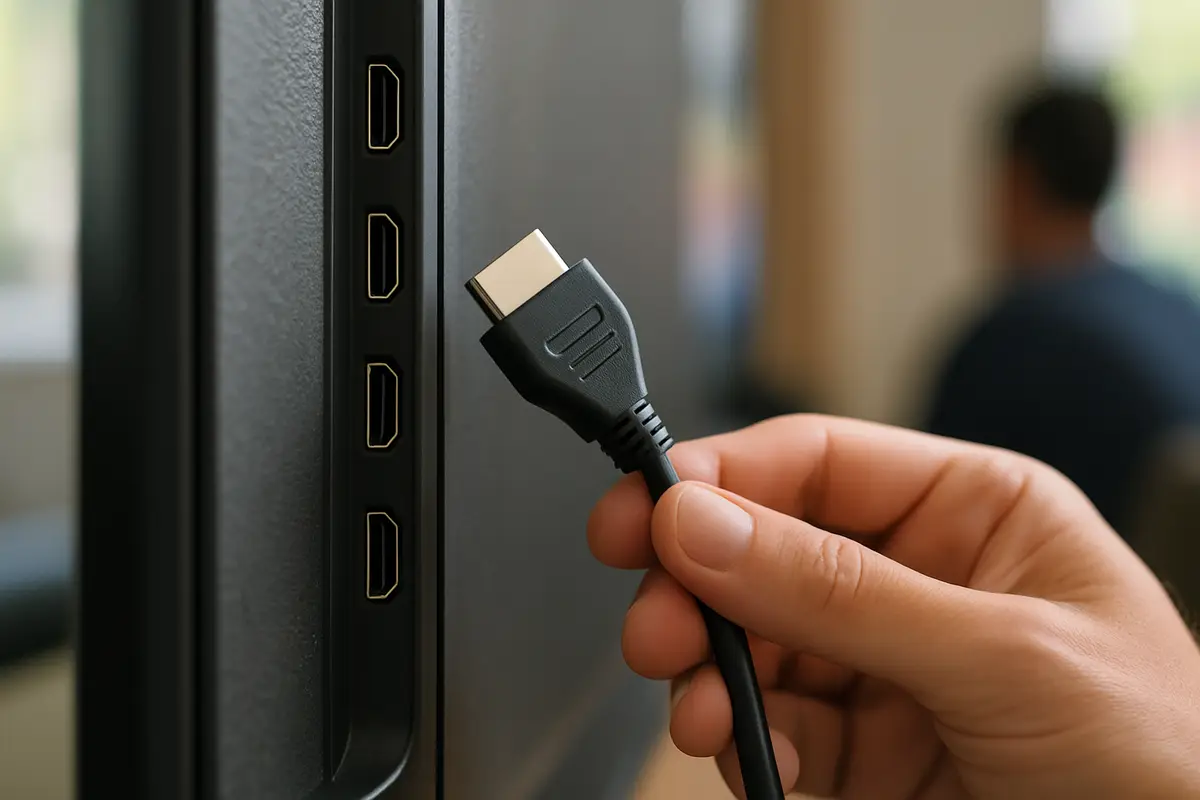
- ▸ HDMI handshake issue between device and TV
- ▸ Stream codec not supported by the current player
- ▸ 4K/HDR output mismatch between device and TV
- ▸ Outdated IPTV app version
Is the Problem the Channel, the App or the TV?
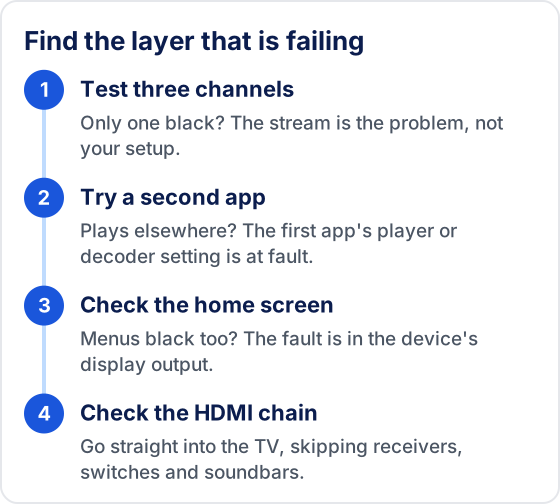
Test three channels from different groups before you change any setting. If only one channel is black, the fault is in that stream, not your setup. If every channel is black in one app but another app plays video normally, the app's player is the cause. If the home screen and every app go black, look at the HDMI connection and the display output instead.
This order matters because each layer hides the next one. Reinstalling an app will not revive a channel that is offline on the server, and lowering the resolution does nothing for a decoder that cannot read the stream. Working from the outside in — channel, app, device, TV — usually finds the cause in a few minutes instead of an evening of random changes.
Fix 1: Change the Video Player in Your IPTV App
- 1In TiviMate: open Settings, find the playback options and switch the video decoder between hardware and software.
- 2In IPTV Smarters: open Settings and pick a different player in the player selection option.
- 3Test the same channel after each change, and switch back if it makes no difference.
💡 Hardware decoding is the usual default. Software decoding is slower but can play streams the hardware decoder cannot.
Fix 2: Change the Stream Type (H.264 vs H.265)
- 1Some devices don't support H.265 (HEVC) decoding — causing black screen.
- 2In your IPTV app, look for a stream quality or format option.
- 3Switch from H.265 to H.264 if available, or ask your provider whether the channel has an H.264 version.
Fix 3: Disconnect and Reconnect the HDMI Cable
- 1Unplug the HDMI cable from both your streaming device and TV.
- 2Wait 10 seconds and reconnect firmly.
- 3Power cycle both the TV and streaming device.
- 4This resets the HDMI handshake which often causes black screen.
Fix 4: Lower Your Display Resolution
- 1On Firestick: Settings → Display & Sounds → Display → Video Resolution → change from 4K to 1080p.
- 2On Android TV: Settings → Device Preferences → Display → Resolution → 1080p.
- 3Test if black screen resolves at the lower resolution.
Fix 5: Disable HDR or Match Content Settings
- 1On Firestick: Settings → Display & Sounds → Display → Match Original Frame Rate → Off.
- 2Also try: Dolby Vision → Off.
- 3HDR/Dolby Vision handshake failures commonly cause black screens on channels that broadcast in SDR.
Fix 6: Update Your IPTV App
- 1Open your app store (Play Store, Amazon Store).
- 2Search for your IPTV app and check if an update is available.
- 3Install the update and restart the app.
- 4An outdated app may fail to decode newer stream formats.
Fix 7: Contact Your Provider's Support
- 1If black screen only affects specific channels, the stream itself may be at fault.
- 2Message your provider's support with your username and the channel name (Tivimate customers can use WhatsApp).
- 3Only the provider can check the source on its side, so report the channel even if other channels play.
Why Does Audio Play While the Picture Stays Black?
Sound and picture are decoded separately, so audio can work while video fails. Audio is light enough for almost any device to decode in software. Video is far heavier, so players hand it to the device's hardware decoder. When that chip does not support the stream's format — HEVC (H.265), 10-bit colour, or an unusual resolution or frame rate — the player keeps receiving data and playing sound, but no frames reach the screen.
Switching the decoder setting forces the other path. Software decoding runs on the main processor, which reads more formats but works much harder; on a low-powered stick it may stutter on busy, high-bitrate channels. Hardware decoding is smooth and efficient when the format is supported. If one setting gives a black picture and the other plays with stutter, the stream is too demanding for the device, and a lower-quality version of the same channel, if your list has one, is the practical fix.
How Do You Fix a Black Screen on a Firestick?
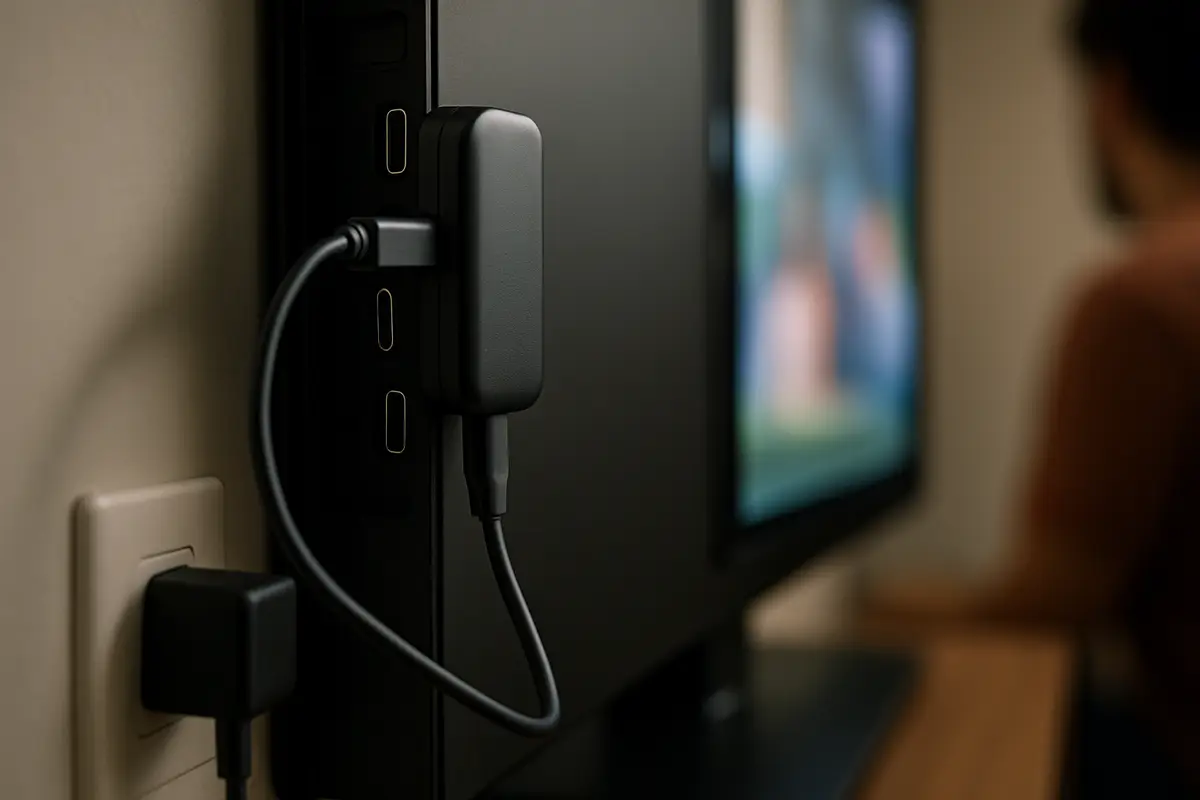
On a Fire TV device, restart it properly, clear the app's cache, then check storage and power. Most Firestick black screens clear at one of these steps.
- ▸Restart, don't just sleep. Hold Select and Play/Pause on the remote for about five seconds, or unplug the power for 30 seconds. Pressing Home and walking away does not reset the video pipeline.
- ▸Clear the cache. Go to Settings → Applications → Manage Installed Applications, open your IPTV app and choose Clear cache. Avoid Clear data unless you are ready to sign in and set the app up again.
- ▸Free some storage. When internal storage is nearly full, apps struggle to buffer and can stall on a black frame. Uninstall apps you no longer use.
- ▸Use the power adapter. Plug the stick into its own adapter rather than a USB port on the TV, which may not supply enough power to keep the video signal stable.
What About Android TV, Google TV and Smart TV Apps?
On Android TV and Google TV boxes the same logic applies, but menu names vary by manufacturer. Find the app under the Apps section of Settings, open it and clear its cache. Then look in the display settings for resolution and for any automatic frame-rate or HDR matching option, and switch matching off while you test.
Built-in IPTV apps on Samsung and LG smart TVs usually offer no decoder choice, so the fixes are narrower: update the TV's firmware, update the app, and switch the TV off at the wall for a minute to clear its memory. TiviMate only runs on Android-based devices, so on those TVs you are using a different player. If a channel is black on the TV but plays on a phone, the TV's built-in decoder does not support that stream's format.
Why Does the Screen Go Black Briefly When Changing Channels?
A short black gap when you switch channels is usually the TV changing display mode, not a fault. With automatic frame-rate or HDR matching on, the device asks the TV to change refresh rate or colour mode to suit each channel, and many TVs blank the picture while they switch.
If the gap is short, you can leave it: matching gives smoother motion on film and fast action. If the picture never comes back, the TV is rejecting the mode the device asked for. Turn matching off as in Fix 5, or set the device to a fixed resolution and refresh rate that the TV supports.
Which Mistakes Keep the Screen Black?
- ▸Changing several settings at once. When the picture returns you will not know which change fixed it, and the others may cause problems later. Change one thing, test, then move on.
- ▸Testing on a single channel. One dead stream looks exactly like a device fault. Always test several channels from different groups.
- ▸Using the wrong HDMI port for 4K. Not every port on a TV supports 4K or HDCP 2.2. Check the labels beside the ports and use the one marked for 4K.
- ▸Leaving a receiver or switch in the chain. Soundbars, AV receivers and HDMI switches all take part in the HDMI handshake. Plug the streaming device straight into the TV to rule them out.
- ▸Blaming the app for a cable fault. A cable that works at 1080p can fail at 4K HDR. Try a shorter high-speed HDMI cable before reinstalling anything.
What Should You Tell Your Provider When a Channel Stays Black?
Give them enough to reproduce the fault: the channel name exactly as it appears in your list, the time it went black, your device and app, and whether you hear audio. “Audio but no video” points to the stream's format; “nothing at all” suggests the source is down. A photo of the player's stream information panel, if it has one, saves a round of questions and gets the right stream looked at first.
Black Screen Still Not Fixed?
If the steps above did not help, message Tivimate support on WhatsApp with the channel name, your device and whether you hear audio.
Want the full picture? Read our our IPTV subscription explained — how IPTV works, device setup guides, how the Tivimate IPTV plans compare, and how to choose a reliable IPTV service provider with stable servers.
Try Tivimate IPTV
55,000+ live channels · 180,000+ movies and series · 4K on selected channels · No contract · From $19.99/month