

MAG boxes are set-top boxes made by Infomir. Unlike a Firestick or a smart TV, most MAG models don't install IPTV apps at all: they connect to a Stalker middleware portal. You enter the portal URL in the box's settings, the service recognises the box by its MAC address, and the channel list and TV guide load after a reboot.
Compatible MAG Models
MAG250 · MAG254 · MAG256 · MAG322 · MAG324 · MAG349 · MAG351 · MAG420 · MAG520 and other Infomir Linux-based models
Some newer Infomir models run Android TV instead. If your box has the Google Play Store, follow the Android TV guide. Older models such as the MAG250 are discontinued and may struggle with newer stream formats.
What You Need Before You Start
- ✓Your box's MAC address. It is printed on a sticker under the box and shown in the settings under system information. It starts with 00:1A:79 on Infomir boxes. Send it to the provider when you subscribe, because the portal is linked to it.
- ✓The portal URL from your welcome message. It is different from Xtream Codes details or an M3U link, so ask for the portal URL specifically.
- ✓A wired connection if possible. MAG boxes are built around Ethernet. HD and 4K need much more bandwidth than SD. The FCC's broadband speed guide lists typical requirements.
How Does a MAG Box Sign In Without a Username or Password?
The MAC address is the login. When the box starts, its built-in portal client contacts the portal URL and identifies itself by its MAC address. The portal checks that address against the boxes the provider has registered and, if it is on the list and the subscription is active, sends back the channel list and TV guide. That is why the order matters: the provider registers your MAC first, then you enter the portal URL.
It also explains the two errors you are most likely to see. A wrong or unreachable URL leaves the box on "Loading portal" because it never reaches the server. A correct URL with an unregistered MAC reaches the server but is refused, which shows up as "STB blocked" or an authorization message.
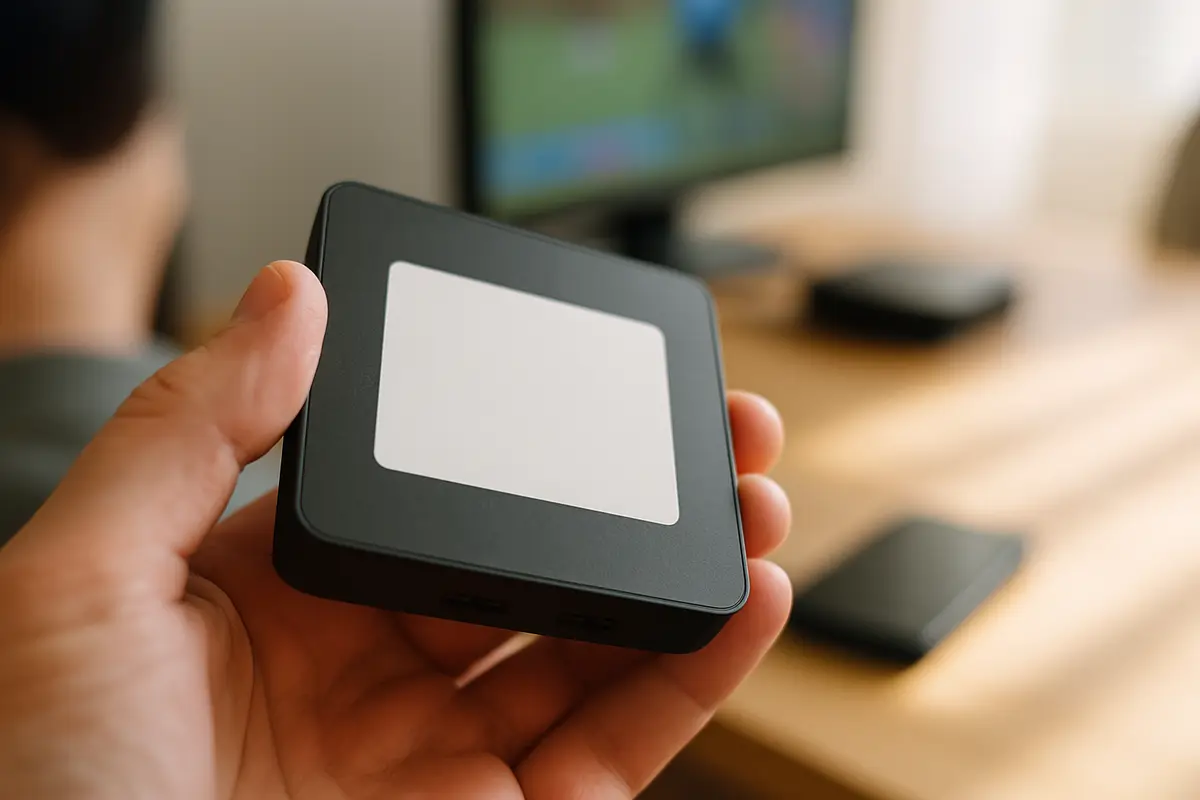
MAG Box IPTV Setup Steps
- 1Connect the box to your router with an Ethernet cable and power it on. Wait for the home screen or the "loading portal" screen.
- 2Press the SETUP (or SET) button on the MAG remote to open Settings. If the box is stuck on a loading screen, it usually offers a Settings option there too.
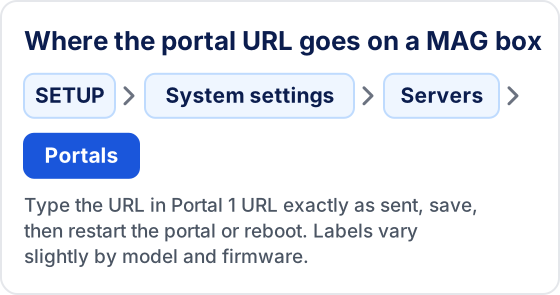
- 3Open System settings → Servers → Portals.
- 4In Portal 1 name, type any label you like, for example the name of your service.
- 5In Portal 1 URL, enter the portal URL exactly as it was sent to you, including http:// and any trailing slash.
- 6Press OK to save, then go back to the main settings screen.
- 7Restart the portal (or simply reboot the box) from the settings menu so it picks up the new address.
- 8After the reboot the box connects to the portal and loads your channel list and TV guide.
💡 Menu labels vary slightly between MAG models and firmware versions, but the Servers → Portals section is where the portal URL always goes.
Moving to a New MAG Box or Adding a Second Portal
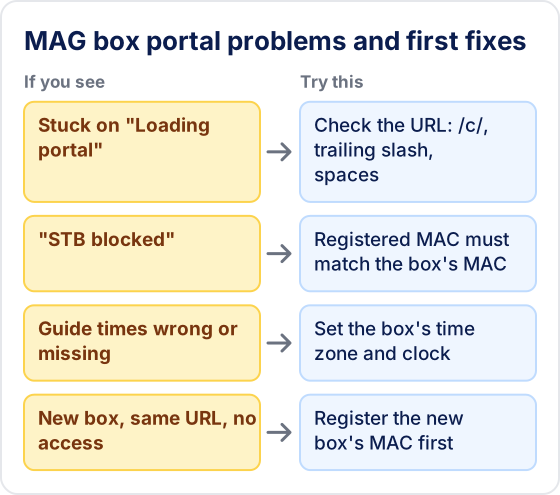
A replacement box has a different MAC address, so the old registration doesn't carry over. Read the new MAC from the sticker or the system information screen, send it to your provider, and enter the same portal URL once they confirm the change. Until then the new box will show "STB blocked" even though the URL is right.
The Portals screen also has a Portal 2 field. You can use it for a backup address if your provider gives you one. When both fields are filled, firmware that has a multiportal option can show a portal choice at start-up; otherwise the box opens Portal 1.
Which Apps Work on a MAG Box?
Linux-based MAG boxes don't have an app store, so TiviMate, IPTV Smarters and similar players can't be installed on them. The built-in portal client is the player. Infomir's home screen also includes an IPTV channels section that can open an M3U playlist link, but it has only a basic channel list. The portal method is what most services support and gives you the full TV guide.
If you'd rather use a player app such as TiviMate — a third-party player by Armobsoft FZE, not our product — you need an Android-based device. See the Firestick guide or the Android TV guide.
MAG Box Troubleshooting
❓ Stuck on "Loading portal"
Check the URL character by character. Look for a missing /c/ ending if yours was sent with one, a missing trailing slash, or a space before or after it. Then reboot. If the URL is correct, test the connection by opening another online feature of the box.
❓ "STB blocked" or authorization errors
The portal doesn't recognise the box's MAC address. Confirm the MAC you sent matches the one in the box's system information, and that the subscription is active. For the general causes of login errors, see the failed to authorize guide.
❓ TV guide missing or showing the wrong times
Check the time zone and clock in the box's settings. A wrong clock shifts or hides guide data. If the guide is still empty, see EPG not working.
❓ Channels not loading after reboot
Re-enter the portal URL and reboot. As a last resort, factory reset the box from the settings menu and set it up again. More causes: why IPTV channels fail to load.
❓ Buffering
Use the tips below, then the full checklist in how to fix IPTV buffering.
Performance Tips for MAG Boxes
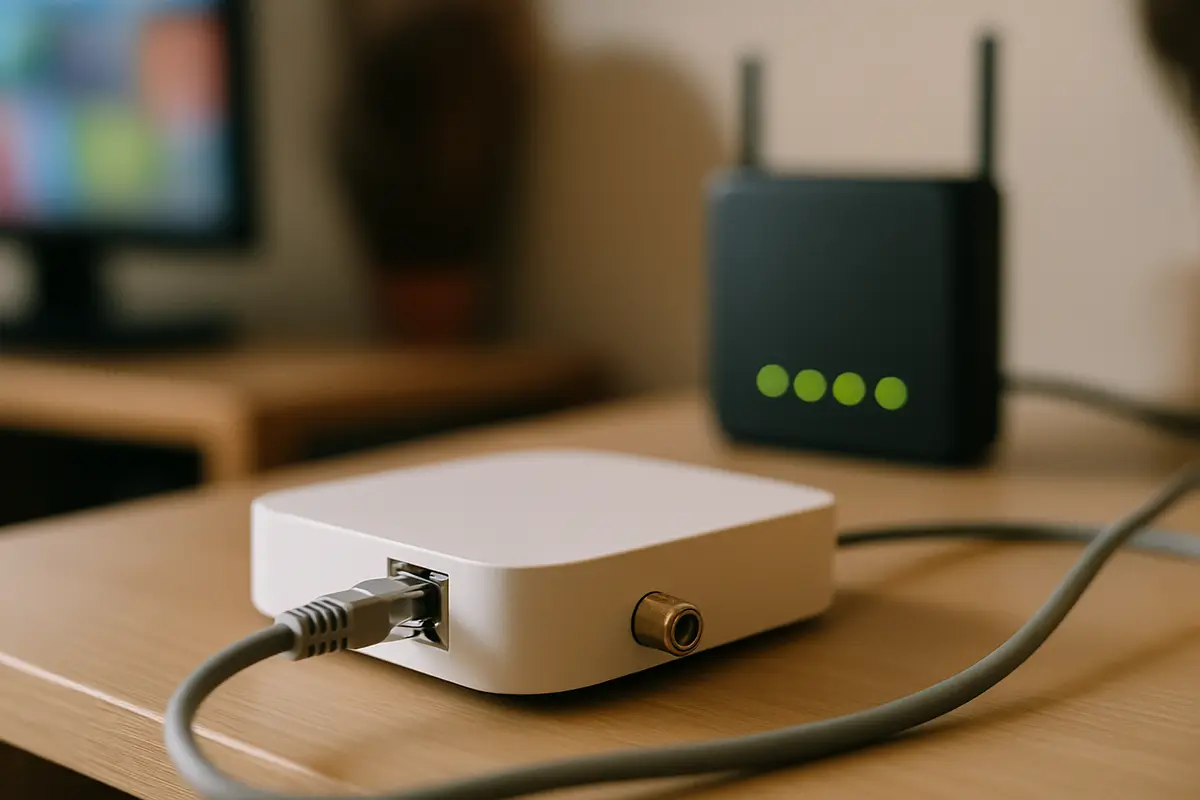
- ▸Stay wired. Ethernet is what MAG boxes are designed for. If you must use Wi-Fi, use a 5 GHz network and keep the box close to the router.
- ▸Install software updates. Check the software update option in the settings menu. Infomir's updates fix playback and portal compatibility issues.
- ▸Reboot occasionally. MAG boxes don't have a per-app cache to clear. A reboot is the equivalent and clears most slowdowns.
- ▸VPNs need a router. MAG boxes can't run VPN apps, so a VPN has to be set up on your router. It can help if your ISP slows streaming traffic, but it adds latency and may be blocked by the service. See what a VPN changes for IPTV.
Frequently Asked Questions
Does Tivimate IPTV work on a MAG box?
Yes. Linux-based Infomir MAG boxes connect to a Stalker middleware portal: you enter the portal URL in the box's settings, the service recognises the box by its MAC address, and the channel list and TV guide load. Send your MAC address when you subscribe, because the portal is linked to it.
Which MAG models are supported?
Linux-based Infomir models such as the MAG250, MAG254, MAG256, MAG322, MAG324, MAG349, MAG351, MAG420 and MAG520. Some newer Infomir models run Android TV instead — if your box has the Google Play Store, follow the Android TV guide. Older models such as the MAG250 are discontinued and may struggle with newer stream formats.
Where do I enter the portal URL on a MAG box?
Press SETUP (or SET) on the remote, open System settings → Servers → Portals, and enter the portal URL exactly as it was sent to you in Portal 1 URL, including http:// and any trailing slash. Save, then restart the portal or reboot the box.
Why is my MAG box stuck on "Loading portal"?
Check the URL character by character — a missing /c/ ending, a missing trailing slash, or a space before or after it are common causes — then reboot. "STB blocked" errors mean the portal doesn't recognise the box's MAC address.
Can I install TiviMate on a MAG box?
No. Linux-based MAG boxes don't have an app store, so TiviMate, IPTV Smarters and similar players can't be installed; the built-in portal client is the player. For TiviMate, a third-party player by Armobsoft FZE, you need an Android-based device.
Need Your MAG Portal URL?
Message us on WhatsApp with your MAG box MAC address and we'll activate your Tivimate subscription immediately.
New to IPTV? Read our IPTV subscription details — covering how IPTV works, every device setup, troubleshooting, pricing, and how to choose the best IPTV service provider.
Try Tivimate IPTV
55,000+ live channels · 180,000+ movies and series · 4K on selected channels · No contract · From $19.99/month