
To install IPTV on an Apple TV, open the App Store on the device and download an IPTV player such as IPTV Smarters Pro or iPlayTV. Open the app, choose Login with Xtream Codes API, and enter the server URL, username and password from your provider. Apple TV 4K and Apple TV HD both support this, and no jailbreak or sideloading is required. You can use an iPhone or iPad keyboard to type the credentials more quickly.
Apple TV 4K and Apple TV HD both run tvOS, which has its own App Store, so IPTV players install like any other app. No jailbreak or sideloading is needed. The player only plays video: you add your own subscription with the details from your welcome message. Note that TiviMate is not available on Apple TV. It is an Android-only player made by Armobsoft FZE, a third-party developer unrelated to this site.
What You Need Before You Start
- ✓An Apple TV 4K or Apple TV HD with a recent tvOS update (Settings → System → Software Updates). Older Apple TV models without an App Store can't install IPTV players.
- ✓Your subscription details — the Xtream Codes server URL, username and password, or an M3U link. Our Xtream Codes vs M3U breakdown explains which a player needs.
- ✓An iPhone or iPad nearby (optional). It makes typing long URLs and passwords much quicker than using the Siri Remote.
- ✓Enough bandwidth for 4K if you plan to watch it — far more than HD needs. The FCC's broadband speed guide lists typical requirements.
Which IPTV Players Work on Apple TV?
- ▸IPTV Smarters — listed in the App Store as Smarters Player Lite, with an Xtream Codes login.
- ▸iPlayTV — a paid player for Apple TV, iPhone and iPad that loads M3U playlists and TV guides.
- ▸GSE Smart IPTV — also available for Apple TV, with Xtream Codes and M3U support.
App Store listings vary by country. If one app isn't available, the others accept the same credentials.
Xtream Codes or M3U: Which Login Should You Use on Apple TV?
Use the Xtream Codes login if your welcome message includes one and the player supports it. With a server URL, username and password, the player fetches the channel categories, on-demand content and TV guide in one go, and picks up changes to the line-up on its own.
An M3U link is the fallback for players such as iPlayTV that load playlists. It works, but the TV guide often has to be added separately as an XMLTV link, and a long M3U address is the hardest thing to type with the Siri Remote. If you only have an M3U link and want an Xtream Codes login, ask for one before you start rather than switching players later.
Method 1: IPTV Smarters on Apple TV
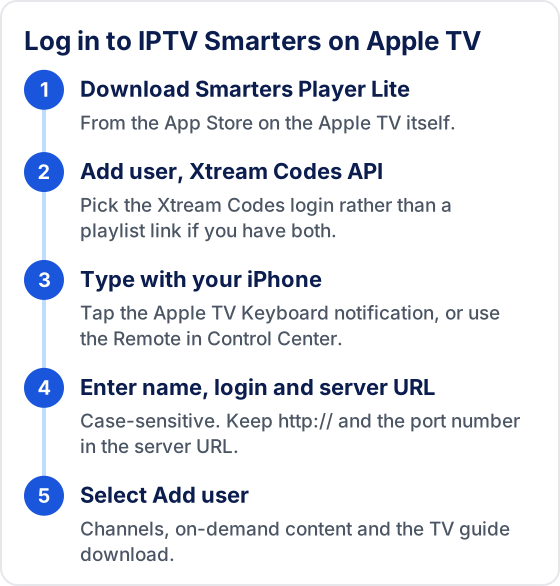
- 1On your Apple TV, open the App Store.
- 2Search for "Smarters Player Lite" and download it.
- 3Open the app and select Add user, then Login with Xtream Codes API.
- 4Select the first text field. If your iPhone is on the same Apple Account or network, it shows an Apple TV Keyboard notification — tap it and type (or paste) on the phone.
- 5Enter any profile name, then the username, password and server URL from your welcome message. They are case-sensitive.
- 6Select Add user. The app downloads live channels, on-demand content and the TV guide.
- 7Open Live TV to start watching.
💡 If the keyboard notification doesn't appear, open Control Center on your iPhone and use the Apple TV Remote — it has its own keyboard.
Method 2: AirPlay from iPhone / iPad
- 1Set up an IPTV player on your iPhone or iPad — see the iPhone guide linked below.
- 2Make sure your iPhone and Apple TV are on the same Wi-Fi network.
- 3Start playing a channel on your iPhone.
- 4Tap the AirPlay icon in the player controls, or use Screen Mirroring in Control Center if the app has no AirPlay button.
- 5Select your Apple TV — the stream appears on your TV.
AirPlay is handy for occasional viewing, but a player installed on the Apple TV itself gives smoother playback and a proper TV guide. iPhone and iPad steps are in the iPhone & iPad guide.
Troubleshooting IPTV on Apple TV
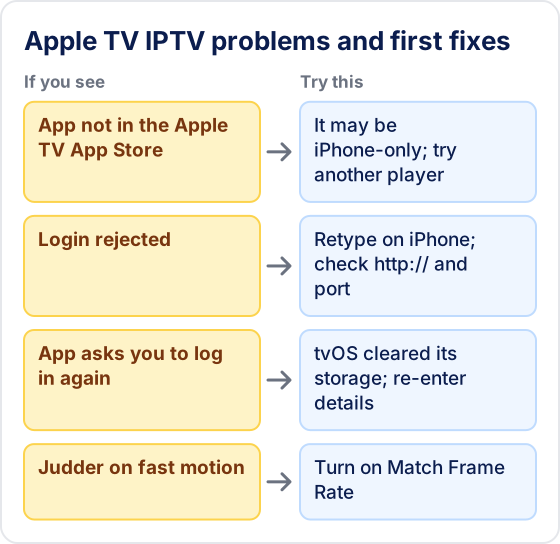
❓ The app isn't in the Apple TV App Store
Some apps are listed for iPhone only, and listings vary by country. Try the other players above.
❓ Login rejected
Re-enter the details from your iPhone keyboard so autocorrect can't change them. Check for http:// and the port in the server URL. The common causes are covered in our failed to authorize fixes.
❓ TV guide not loading
Reload the EPG from the player's settings and give it a few minutes. More fixes in EPG not working.
❓ Buffering or stuttering motion
See the performance tips below and how to fix IPTV buffering.
Why Does the Player Ask You to Log In Again on Apple TV?
Usually because tvOS cleared the app's stored data, not because your subscription changed. Apple TV gives apps only a small amount of permanent storage, and the system can delete cached files such as channel lists and guide data when space runs low. The player then opens as if it were new, or spends longer downloading the channel list.
- ▸Re-enter the same details. If they work straight away, the account was never the problem.
- ▸Free up space. Delete apps and games you no longer use, so tvOS has less reason to clear the player's data.
- ▸Keep the details handy. Save the welcome message on your iPhone so you can paste it through the Apple TV Keyboard in seconds.
Performance Tips for Apple TV
- ▸Use Ethernet if your model has it. Apple TV HD and most Apple TV 4K models have an Ethernet port (the Wi-Fi-only Apple TV 4K doesn't). On Wi-Fi, use the 5 GHz band.
- ▸Turn on Match Content. Settings → Video and Audio → Match Content → Match Frame Rate reduces judder on sports broadcast at 50 or 60 frames per second.
- ▸Restart and reinstall. Settings → System → Restart clears memory. tvOS has no cache button, so deleting and reinstalling the player is the way to clear it (you will need to log in again).
- ▸VPNs are a trade-off. A VPN can help if your ISP slows streaming traffic, but it adds latency and some services block VPN addresses. Test both ways — see testing IPTV with and without a VPN.
Frequently Asked Questions
Does Tivimate IPTV work on Apple TV?
Yes. Apple TV 4K and Apple TV HD run tvOS, which has its own App Store, so IPTV players install like any other app — no jailbreak or sideloading. Install a player, choose Xtream Codes login, and enter the details from your welcome message.
Which IPTV apps work on Apple TV?
IPTV Smarters (listed in the App Store as Smarters Player Lite) and GSE Smart IPTV both accept Xtream Codes logins, and iPlayTV accepts M3U playlists. App Store listings vary by country; if one app isn't available, the others accept the same credentials.
Does TiviMate work on Apple TV?
No. TiviMate is an Android-only player made by Armobsoft FZE, so it isn't available on Apple TV. Use one of the tvOS players instead.
Why is IPTV buffering on Apple TV?
Use Ethernet if your model has it — Apple TV HD and most Apple TV 4K models have an Ethernet port (the Wi-Fi-only Apple TV 4K doesn't). On Wi-Fi, use the 5 GHz band. Settings → System → Restart clears memory.
Can I use the same login on my Apple TV and iPhone?
Yes, the same details work in any player on any device. Most subscriptions limit how many devices can stream at the same time, so close the player on one screen before you start watching on another if you see a connection or authorization error.
Which Apple TV models can install IPTV players?
Apple TV 4K and Apple TV HD with a recent tvOS update. Older Apple TV models without an App Store can't install IPTV players.
Start Watching on Apple TV Today
Free 24-hour trial — no credit card required.
New to IPTV? Read our what the Tivimate IPTV subscription includes — covering how IPTV works, every device setup, troubleshooting, pricing, and how to choose the best IPTV service provider.
Try Tivimate IPTV
55,000+ live channels · 180,000+ movies and series · 4K on selected channels · No contract · From $19.99/month