
NordVPN is the top pick for IPTV on this page, followed by ExpressVPN for Firestick, Surfshark for value, Private Internet Access for configurability and IPVanish for routers. A VPN is not required to use Tivimate, but it can solve two common problems: ISP throttling of streaming traffic during peak evening hours, and privacy, because it encrypts your traffic so your ISP cannot see what you stream. Look for fast servers, a Firestick app, no bandwidth limits and split tunnelling.

A VPN is not required to use Tivimate — but US viewers often find a VPN solves two common problems:
- 1.ISP throttling — some internet providers slow down streaming traffic at busy times, usually in the evening. A VPN hides what kind of traffic it is, which can route around this.
- 2.Privacy — A VPN encrypts your internet traffic so your ISP cannot see what you are streaming.
If your IPTV buffers in the evenings but works fine in the morning, ISP throttling is likely the cause. See our full guide: Why does my IPTV keep buffering? A VPN is just one piece of the setup — for the bigger picture, read our full guide to One IPTV, one subscription that replaces cable and every streaming app.
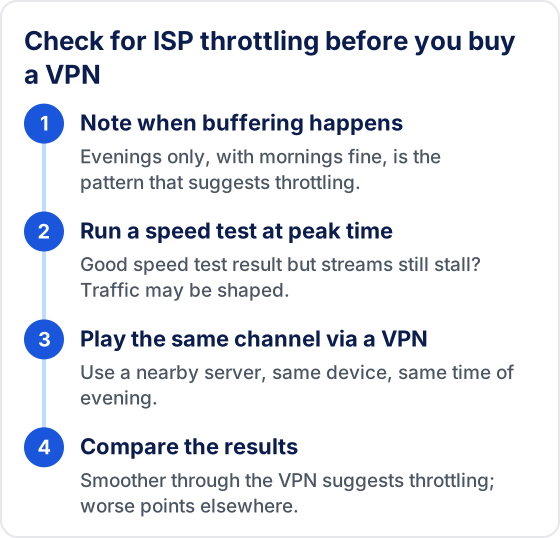
How Can You Tell If Your ISP Is Throttling IPTV?
Compare the same channel at the same time of evening with and without a VPN. If it plays smoothly through the VPN but stalls without it, your provider is probably slowing streaming traffic. If it is just as bad or worse through the VPN, throttling is not the cause and a VPN will not fix it.
A speed test alone does not settle it. Speed test sites are easy for an internet provider to recognise, so a connection can score well while streams are still slowed. The comparison that matters is real playback on your own device. Keep everything else the same — device, app, channel, Wi-Fi position — and pick a VPN server close to you so distance does not skew the result.
If buffering happens at every hour of the day, look at your home network first: Wi-Fi signal, other devices downloading, or a streaming stick that is short of storage. The IPTV buffering guide covers those checks.
What to Look for in a VPN for IPTV
- ✓Fast servers — slow VPNs will make buffering worse, not better
- ✓Firestick app — essential if you stream on Amazon Fire TV
- ✓No bandwidth or speed limits
- ✓Split tunnelling — route only IPTV through the VPN, not all traffic
- ✓servers — keeps latency low for IPTV streams
NordVPN
Best Overall“NordVPN is the first pick on this page: a dedicated Firestick app, a large server network and obfuscated servers, which help on networks that slow down or block VPN traffic.”
Pros
- ✓Large server network, so a nearby server is easy to find
- ✓Firestick app available in Amazon Store
- ✓Obfuscated servers for networks that block VPN traffic
- ✓30-day refund window
Cons
- ✗Slightly more expensive than competitors
- ✗Some advanced features need manual setup
ExpressVPN
Best for Firestick“ExpressVPN suits viewers who want the simplest Firestick setup: the dedicated app is easy to use with a remote, and split tunnelling lets you route only your IPTV player through the VPN.”
Pros
- ✓Polished, easy Firestick app
- ✓MediaStreamer smart DNS included
- ✓Split tunnelling (VPN for IPTV only)
- ✓30-day refund window
Cons
- ✗Most expensive option
- ✗Lower device limit than some rivals
Surfshark
Best Value“Surfshark is the value choice on this page: a low price on long plans and a device allowance that covers a Firestick, a phone and a laptop in the same home. Check the current device limit on its site before you buy.”
Pros
- ✓Very affordable on long plans
- ✓Generous device allowance for a household
- ✓Firestick app available
- ✓30-day refund window
Cons
- ✗Smaller server network than the largest providers
Private Internet Access (PIA)
Most Configurable“PIA is a privacy-focused VPN with detailed connection settings. Best for technically-minded users who want fine-grained control over their VPN settings.”
Pros
- ✓Highly configurable settings
- ✓Large server network
- ✓Open-source apps
- ✓Affordable long-term plans
Cons
- ✗Interface less beginner-friendly
- ✗US-focused support team
IPVanish
Good for Routers“IPVanish is worth considering if you want to install a VPN on your router — protecting every device in your home, including Smart TVs that don't support VPN apps natively.”
Pros
- ✓Good router support (protects all devices)
- ✓Firestick app available
- ✓Straightforward apps
Cons
- ✗No independent audit published
- ✗Fewer extra features than larger rivals
How to Use a VPN with IPTV on Firestick
- 1Subscribe to your chosen VPN (NordVPN or ExpressVPN recommended).
- 2On your Firestick, open the Amazon App Store and search for your VPN by name.
- 3Install and open the VPN app. Log in with your VPN account credentials.
- 4Connect to a server (this keeps latency low for IPTV streams).
- 5Once connected, open your IPTV app (TiviMate or IPTV Smarters Pro).
- 6Stream as normal — the VPN encrypts your traffic and bypasses throttling.

Need help setting up IPTV on your Firestick? See our full guide: How to Install IPTV on Firestick.
Why Can a VPN Make Buffering Worse?
A VPN adds work and distance to every stream, so a poor match can slow playback down. Your traffic is encrypted on the device, sent to the VPN server, then on to the stream's server. Each part of that path can become the bottleneck.

- ▸Distant servers. A server far away adds delay and more chances for congestion. Choose one near you unless you have a specific reason not to.
- ▸Weak device processors. Encryption runs on the streaming device itself. Budget sticks have limited processing power, and a heavy VPN protocol can use enough of it to slow video down.
- ▸Protocol choice. WireGuard-based protocols are generally lighter on low-powered devices than OpenVPN. Most major VPN apps let you choose the protocol in their settings.
- ▸Busy servers. A crowded server slows everyone on it. If evenings are slow even through the VPN, switch to a different nearby server.
Should You Run the VPN on the Device or the Router?
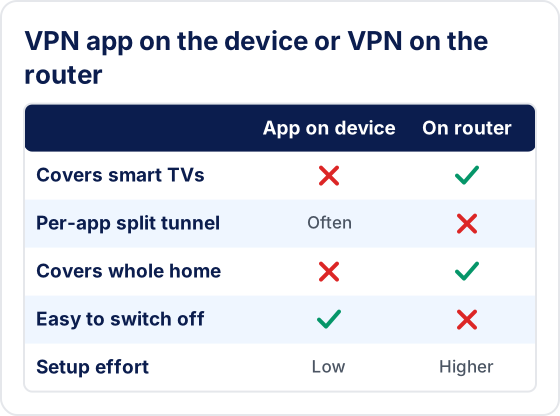
Use the VPN app on the streaming device if you watch on a Firestick or Android TV box; use the router only if you need to cover devices that cannot run a VPN app, such as many smart TVs.
An app on the device is easier to install, easier to switch off when something misbehaves, and often supports split tunnelling, so only your IPTV app goes through the VPN. A router-level VPN covers everything in the home, but not every router supports it, setup is more involved, and every device shares the router's processing power for encryption. When a stream fails, it is also harder to tell whether the VPN is to blame.
Which VPN Settings Matter for Streaming?
Four settings decide most of the streaming experience once a VPN is installed.
- ▸Server location: the nearest server is usually the fastest. Avoid automatic picks that change server every time you connect if results vary.
- ▸Split tunnelling: send only the IPTV app through the VPN so other apps and updates do not compete for the tunnel.
- ▸Kill switch: it cuts the connection if the VPN drops, which protects privacy but also freezes the stream until the VPN reconnects. If streams stop at random, check whether the kill switch is involved.
- ▸Connect on start-up: streaming devices restart for updates, so set the VPN to reconnect automatically or you may stream without it without noticing.
What Does a VPN Not Change?
A VPN protects the privacy of your connection and can route around traffic shaping by your internet provider. It does not change what a service is licensed to show you, and it does not make an unreliable stream source reliable. Use it for privacy and stable speeds, follow the terms of the services you use, and choose a provider whose streams play well without one.
Start Streaming Without Buffering
Try Tivimate free for 24 hours on your own connection, with or without a VPN.
New to IPTV? Read our complete IPTV subscription guide — covering how IPTV services work, device compatibility, what to look for in a provider, and pricing explained.
Try Tivimate IPTV
55,000+ live channels · 180,000+ movies and series · 4K on selected channels · No contract · From $19.99/month