
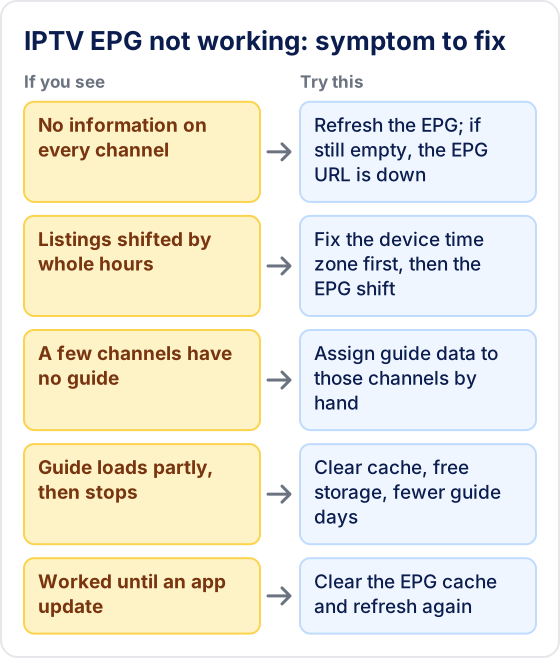
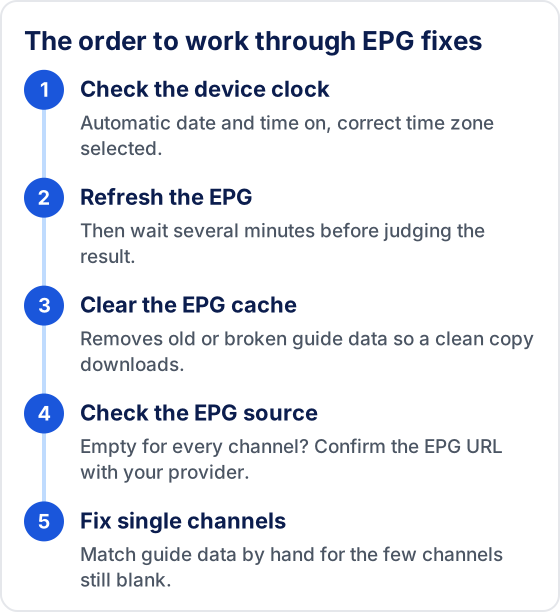
When the IPTV EPG is not working, the guide data is usually either missing, cached, or set to the wrong time zone. First force a refresh in your player's EPG settings, then check that the time zone matches your location, since a mismatch shifts every programme by hours and looks like missing data. If the guide is empty for every channel, the provider's EPG URL is likely down and only they can fix it.

The EPG (Electronic Programme Guide) is the TV guide that shows what's on each channel — essential for planning what to watch, setting recordings and browsing channels without flicking through them one by one. Here's how to fix it when it stops working.
Common EPG Problems
- ▸EPG shows 'No information' on all channels
- ▸EPG loads partially then stops
- ▸Wrong times — programme guide 1 hour off
- ▸EPG worked before but stopped after an update
- ▸Specific channels missing from the EPG
Why Does an IPTV Guide Stop Working?
An IPTV guide fails at one of three points: the guide file does not download, it downloads but does not match your channels, or it matches but shows the wrong times. Knowing which one you have tells you which fix to use.
Most providers publish guide data as an XMLTV file at an EPG URL. Your player downloads that file, then links each programme to a channel using an ID stored in the playlist (often called the tvg-id). If the download fails, every channel says “No information”. If the IDs do not line up — because a channel was renamed or moved — only those channels go blank. If the file and your device disagree about the time zone, every listing is shifted by the same number of hours.
That is why refreshing helps some problems and not others. A refresh fixes a failed or stale download, but it cannot fix a mismatched ID or a wrong clock, because the same data comes back each time.
Fix 1: Force Refresh the EPG in TiviMate
- 1Open TiviMate and go to Settings (gear icon).
- 2Scroll down to EPG Settings.
- 3Tap Refresh EPG Now.
- 4Wait 3–5 minutes for the full EPG to reload.
- 5Navigate back to the TV Guide to check if it has populated.
💡 Set TiviMate to auto-refresh EPG daily at 6am in Settings → EPG Settings → Auto Update.
Fix 2: Force Refresh EPG in IPTV Smarters Pro
- 1Open IPTV Smarters Pro and go to your playlist settings.
- 2Tap Update Playlist / Refresh.
- 3Allow 2–3 minutes for the EPG data to download.
- 4Navigate to the Live TV section and check the EPG column.
Fix 3: Fix EPG Times Showing 1 Hour Wrong
- 1This is a time zone issue — the guide data and your device disagree about local time.
- 2In TiviMate: find the EPG time shift option and adjust it by the number of hours the listings are off.
- 3In IPTV Smarters: Settings → Time Offset → adjust to match your local time.
- 4The EPG times should now match broadcast schedules.
💡 US clocks change in March (EDT, UTC-4) and November (EST, UTC-5). Update your timeshift setting each time.
Fix 4: Clear EPG Cache
- 1In TiviMate: Settings → EPG Settings → Clear EPG Cache.
- 2Close and reopen TiviMate, then refresh EPG.
- 3This forces the app to download fresh EPG data from the server.
Fix 5: Check Your Tivimate EPG URL
- 1Some IPTV apps require the EPG URL to be entered separately.
- 2Contact Tivimate support on WhatsApp to confirm your EPG URL.
- 3In your IPTV app settings, find the EPG URL field and enter the URL provided.
- 4Save and refresh the EPG.
Fix 6: Reinstall the IPTV App
- 1Uninstall your IPTV app completely.
- 2Reinstall it fresh from the app store.
- 3Re-enter your Tivimate credentials.
- 4Allow 5–10 minutes for the EPG to fully populate after first login.
Why Are Only Some Channels Missing From the Guide?
When most channels show listings but a few are blank, the guide is working and those channels are not matched to it. The player cannot find guide data with the same ID as the channel, so it shows nothing rather than guessing.
Most full-featured players, TiviMate included, let you assign guide data to a channel by hand from that channel's options: pick the channel, choose the guide entry that matches it, and save. The match is stored on the device, so it survives guide refreshes. If many channels lose their guide at once after a playlist update, the provider has probably changed channel IDs; ask them whether the EPG URL changed too before matching dozens of channels manually.
How Do You Fix Guide Times That Are Off by Hours?
Fix the device clock first, then the player. If every programme is shifted by the same whole number of hours, check that your streaming device has automatic date and time switched on and the correct time zone selected. Many players read the time zone from the device, so a box still set to another region shifts the entire guide.
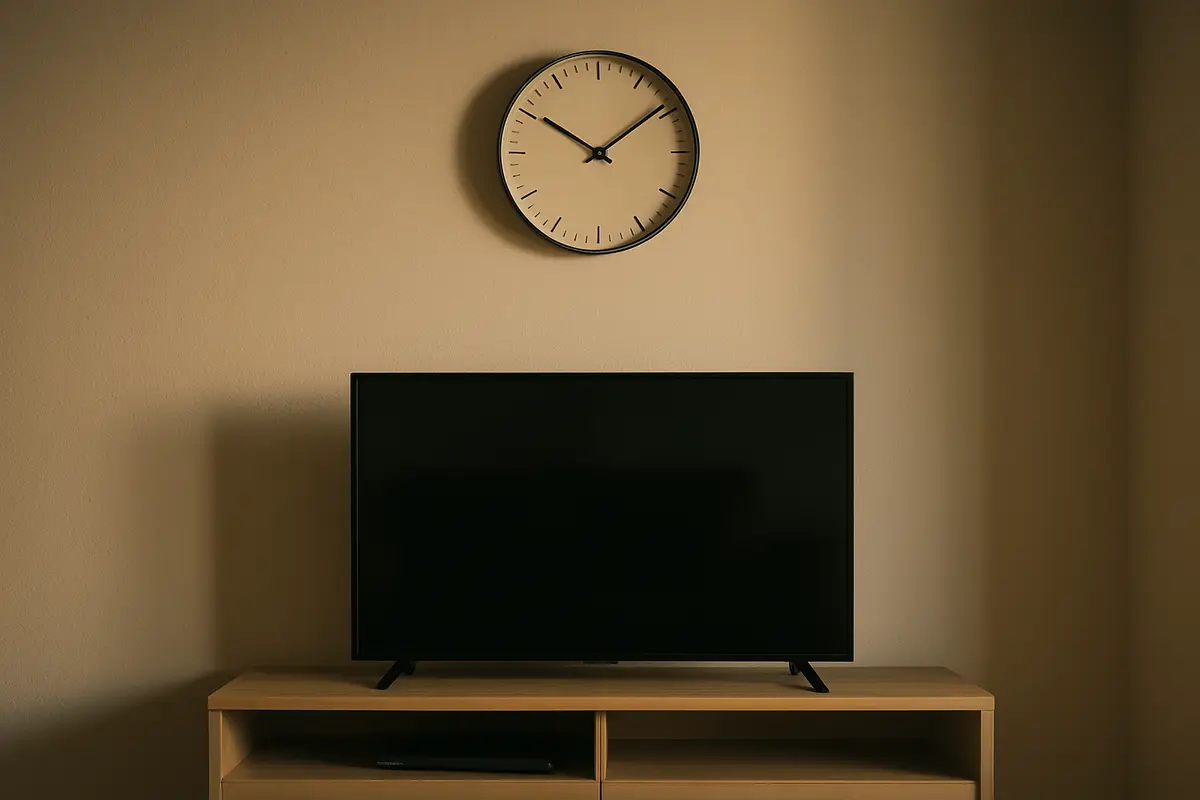
Only use the player's EPG time shift if the device clock is correct and the listings are still off. Set the shift to the exact difference — for example, if a show listed at 7pm actually starts at 8pm, move the guide forward by one hour.
US viewers have a second source of confusion: the country spans several time zones, and clocks change twice a year. A shift you added by hand does not adjust itself when daylight saving starts or ends, which is why a guide can be correct for months and then suddenly be an hour out. If you rely on a manual shift, check it after each clock change.
Why Does the Guide Load Partly, Then Stop?
A guide that loads halfway is usually running out of room or time. Guide files for large playlists can be big, and a streaming stick with little free storage or memory may give up partway through processing them.
- ▸Free internal storage by uninstalling apps you do not use, then clear the EPG cache and refresh.
- ▸If your player lets you choose how many days of guide to keep, reduce it. Fewer days means a smaller file to process.
- ▸Hide channel groups you never watch. Some players then skip guide data for hidden channels.
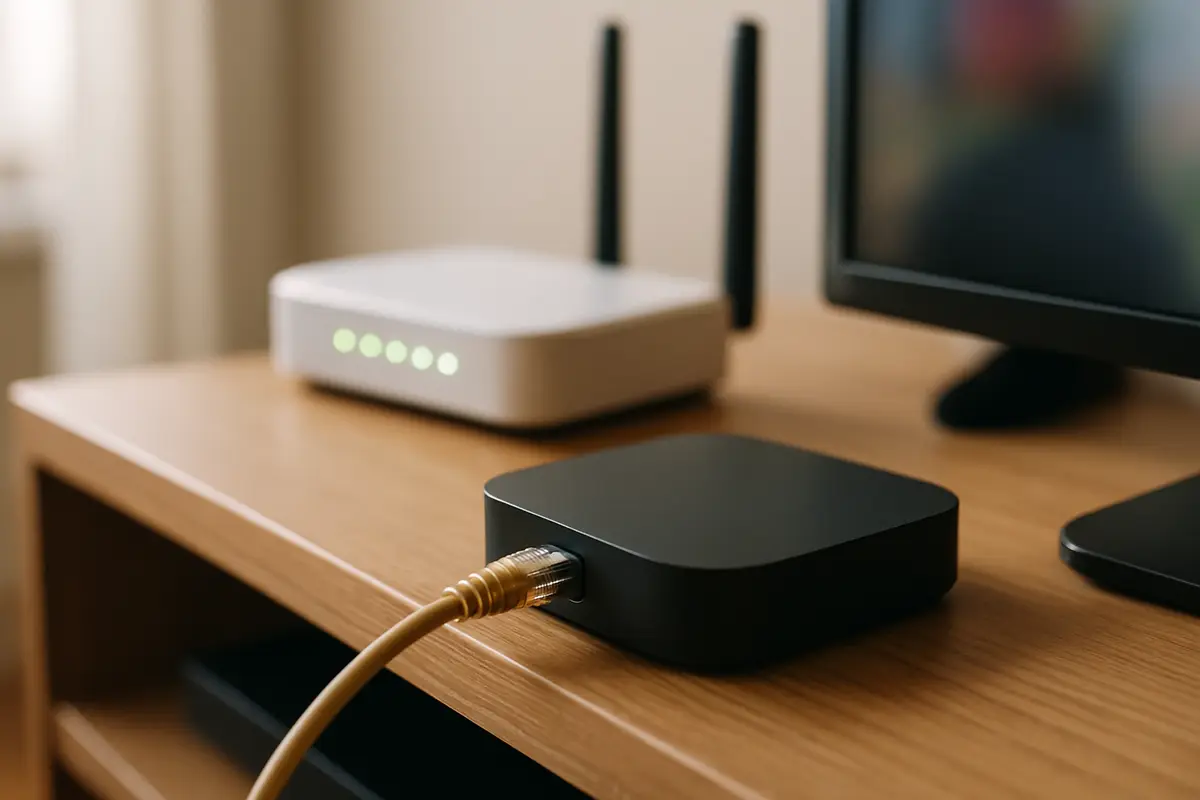
- ▸Refresh on a wired connection or close to the router, so a weak Wi-Fi signal does not interrupt the download.
Does a Broken Guide Affect Recordings?
Yes, in any player that schedules recordings from the guide. If listings are an hour out, a scheduled recording starts an hour early or late and misses the programme. After fixing the time zone or time shift, open your list of scheduled recordings and check the start times, because entries made before the fix keep the old times. If your player lets you add a few minutes of padding before and after each recording, turn it on so small guide errors do not cut off the start or the end.
Could Your Network Be Blocking the Guide?
Yes. The guide usually downloads from a different address than the streams, so channels can play while the guide fails. Ad-blocking DNS services, router filters and some VPN settings can block that address without telling you. If the guide stopped after you changed DNS, installed a blocker or turned on a VPN, switch it off, refresh the EPG and see whether listings return. If they do, add an exception for the EPG address rather than leaving protection off.
Which EPG Mistakes Make Things Worse?
- ▸Adding a second guide source on top. Two sources with different IDs can overwrite each other, leaving channels blank or with the wrong listings. Use the provider's EPG first and add others only to fill specific gaps.
- ▸Refreshing again and again. Each refresh restarts the download. Start one, then leave it for several minutes before you judge the result.
- ▸Using time shift to hide a wrong device clock. It fixes the guide but leaves recordings and reminders at the wrong time. Correct the device time zone instead.
- ▸Reinstalling before clearing the cache. Clearing the EPG cache solves most of the same problems without losing your favourites and settings.
EPG Still Not Working?
Our support team can send you the correct EPG URL and walk you through setup via WhatsApp.
Want the full picture? Read our Tivimate IPTV subscription overview — how IPTV works, device setup guides, pricing, and how to choose a reliable IPTV service provider with stable servers.
Try Tivimate IPTV
55,000+ live channels · 180,000+ movies and series · 4K on selected channels · No contract · From $19.99/month