

How Tivimate Login Works
Unlike Netflix or Hulu, Tivimate is a professional IPTV service that delivers streams via the Xtream Codes API — the industry-standard protocol used by all major IPTV apps. There is no web-based login page. Instead, your Server URL, Username, and Password are entered directly into your chosen IPTV player.
After completing your purchase or requesting a free trial login, your Tivimate login credentials are delivered via WhatsApp within minutes. Once you have those three pieces of information, logging in takes under 60 seconds on any device.
Your Tivimate login credentials include:
- Server URL — the streaming server address (e.g. http://server.tivimate.me:port)
- Username — your unique account username
- Password — your account password (case-sensitive)
What to Check Before You Enter Your Login
Most failed logins come from how the details were typed, not from the account itself. Before you start, open the WhatsApp message that holds your Server URL, Username and Password and keep it in front of you. Copying and pasting is safer than retyping, especially on a TV remote where a single wrong character is easy to miss.
- Look for characters that are easy to confuse: the letter O and the number 0, a lowercase l and a capital I.
- Turn off autocorrect and auto-capitalisation if you paste from a phone keyboard — a capitalised first letter breaks a case-sensitive username.
- Check that nothing was copied along with the details, such as a trailing space, a full stop or a line break.
- Make sure the device is online and its date and time are set correctly; a wrong clock can stop secure connections from opening.
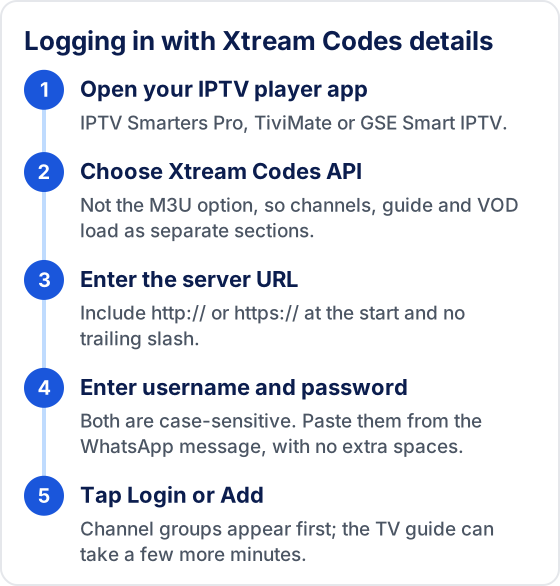
How to Log In to Tivimate — By App
Follow the steps for your preferred IPTV app below
IPTV Smarters Pro
Works on: Android, iPhone, Firestick, Smart TV
- 1Open IPTV Smarters Pro on your device.
- 2Tap "Add User" on the main screen.
- 3Select "Login with Xtream Codes API".
- 4Enter a profile name (e.g. Tivimate).
- 5Paste your Server URL, Username, and Password exactly as received.
- 6Tap "Login" — your channels and VOD will load automatically.
TiviMate
Works on: Firestick, Android TV, Android Box
- 1Open TiviMate on your device.
- 2Tap "Add Playlist" on the welcome screen.
- 3Choose "Xtream Codes API".
- 4Enter your Tivimate Server URL, Username, and Password.
- 5Tap "Add" — all channels, EPG guide, and VOD titles load within seconds.
- 6Go to Settings to customize your player and EPG preferences.
GSE Smart IPTV
Works on: iPhone, iPad, Apple TV, Android
- 1Open GSE Smart IPTV on your device.
- 2Tap "Remote Playlists" from the left menu.
- 3Tap the "+" icon to add a new playlist.
- 4Select "Xtream Codes API".
- 5Enter your Tivimate credentials and a playlist name.
- 6Tap "Add" to complete the Tivimate login process.
Xtream Codes or M3U: Which Login Method Should You Use?
Use Xtream Codes API whenever your app offers it. With Xtream Codes, the app signs in with your three credentials and then requests live channels, the TV guide and VOD as separate sections, so categories stay organised and the guide matches each channel automatically.

An M3U playlist is a single web address that lists every stream in one long file. It works in more apps, but it usually loads more slowly, the guide often needs a separate EPG link, and the address normally contains your username and password in plain text. If you ever use an M3U link, treat it exactly like a password: do not paste it into public forums, shared notes or screenshots.
If you switch from one method to the other, delete the old playlist first rather than adding a second copy. Two copies of the same account leave you with duplicate channel lists and favourites split between them.
Tivimate Login Not Working?
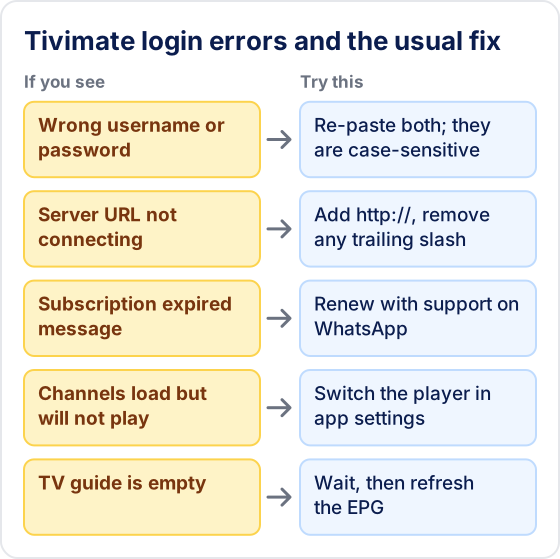
If your Tivimate login is failing, use the troubleshooting guide below to resolve the most common issues instantly.
Wrong username or password error
Double-check that you copied the credentials exactly — they are case-sensitive. Avoid adding extra spaces. Copy-paste directly from your WhatsApp message.
Server URL not connecting
Ensure you include "http://" or "https://" at the start of the Server URL. Do not add a trailing slash. Check your internet connection and try again.
Subscription expired message
Your subscription may have expired. Contact Tivimate support via WhatsApp to renew your plan and restore access instantly.
Channels loading but no stream
Try switching your player inside the app settings. In IPTV Smarters Pro, go to Settings → Player → try ExoPlayer or VLC. In TiviMate, go to Settings → Player.
EPG (TV guide) not showing
EPG data can take a few minutes to load after login. Force-close and reopen the app. In TiviMate, go to Settings → EPG and tap Refresh EPG.
Still having trouble with your Tivimate login? Our support team is available 24/7.
Contact Support via WhatsAppWhy a Login That Worked Yesterday Stops Working
When a login that used to work suddenly fails, and you have not changed anything, the cause is almost always one of four things. Working through them in this order saves time:
- The server URL changed. Your username and password can stay the same while the server address moves. Ask support on WhatsApp for the current Server URL and edit the playlist rather than creating a new one.
- The plan ran out. An expired plan often shows up as an authentication error instead of a clear expiry message. Check the date you paid against the length of your plan.
- Another device is still signed in. If a phone, a second TV or a relative's device is streaming on the same account, a new login can be refused. Close the app on the other device and try again.
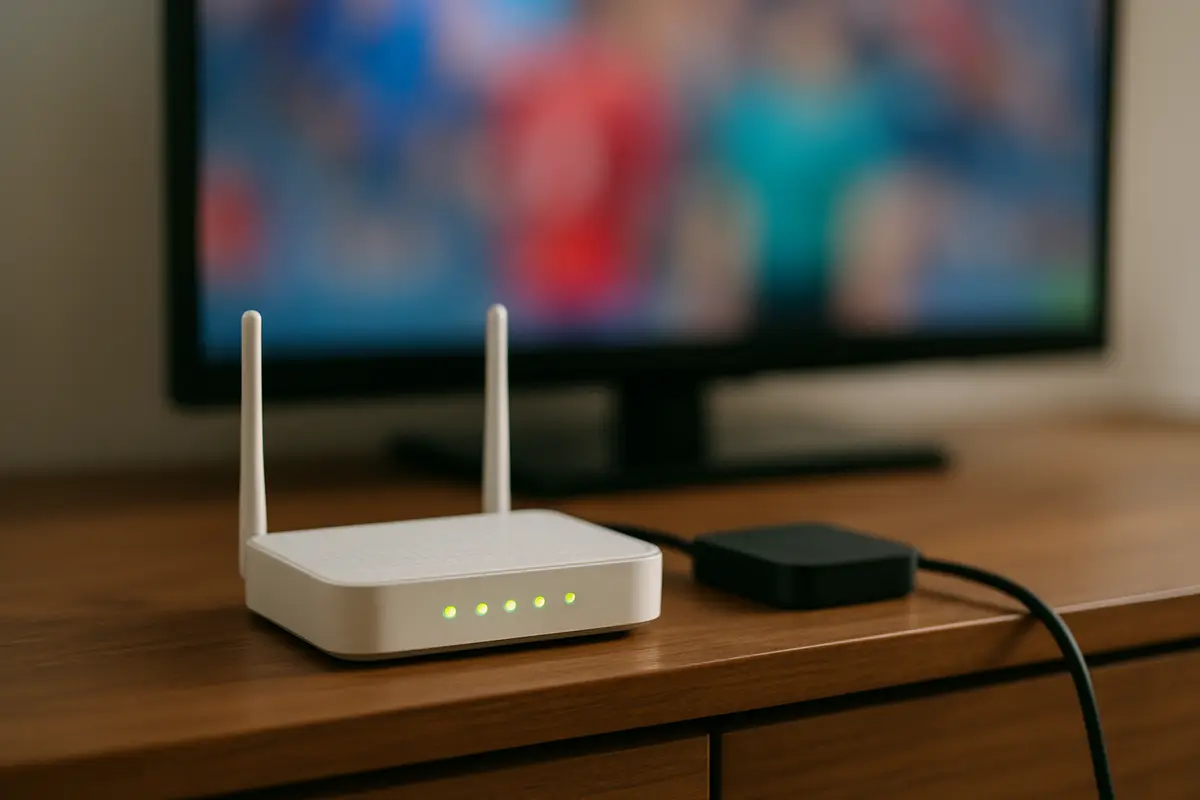
- The network is the problem. Test the same login over a different connection, such as a phone hotspot. If it works there, restart your router or check its settings before contacting support.
An app update can also clear saved playlists. If your player opens on its welcome screen again, simply add the playlist again with the same details.
How to Keep Your Login Details Safe
Your three credentials are the whole account, so anyone who has them can use your connections. A few habits keep them yours:
- Never post your Server URL, username, password or M3U link in reviews, Reddit threads or support forums, and crop them out of any screenshot you share.
- Only enter the details into player apps installed from an official app store or the developer's own website, not from unknown APK download sites.
- Be wary of messages that claim to be from Tivimate and ask you to pay again or confirm card details. Check with support on the WhatsApp number you already use before acting.
- If you think your details have been shared or leaked, tell support straight away and ask for new credentials.
Tivimate Login — All Supported Devices
Need a device-specific setup guide? Select your device below.
Frequently Asked Questions
How do I log in to Tivimate?
Tivimate does not use a traditional website login portal. Instead, you log in through an IPTV app such as IPTV Smarters Pro or TiviMate using Xtream Codes API. Enter the Server URL, Username, and Password sent to you after purchase, then tap Login to access all 55,000+ channels.
Where do I find my Tivimate login credentials?
Your Tivimate credentials (Server URL, Username, and Password) are sent via WhatsApp within minutes of completing your purchase. If you cannot find them, contact Tivimate support via WhatsApp for instant assistance.
My Tivimate login is not working — what do I do?
If your Tivimate login is not working, check that: (1) you are entering the credentials exactly as provided — they are case-sensitive; (2) your subscription is active; (3) you are using Xtream Codes API as the login method, not M3U URL. Contact WhatsApp support if the issue persists.
Can I log in to Tivimate on multiple devices?
Yes. Tivimate supports multiple simultaneous connections depending on your plan. You can log in on Firestick, Android TV, Samsung TV, iPhone, Windows PC, and more — all at the same time on supported plans.
I don't have a Tivimate account — how do I get one?
You can start with a free 24-hour trial — no credit card required. Request access via WhatsApp, and receive your Tivimate login credentials within minutes. Full plans start from $19.99/month.
Is tivimate.me/tvnado-login the Tivimate IPTV login page?
Yes. tivimate.me is the only domain we operate — we do not operate a separate tivimate-login.com or similar site. If a login page asks for anything beyond your Server URL, Username and Password, it is not ours.
Don't Have a Tivimate Account Yet?
Get a free 24-hour trial — no credit card needed. Receive your Tivimate login credentials via WhatsApp within minutes and start streaming 55,000+ channels instantly.
Get Free Trial — No Card RequiredFrom $19.99/month · 55,000+ channels · 180,000+ VOD · No contracts