
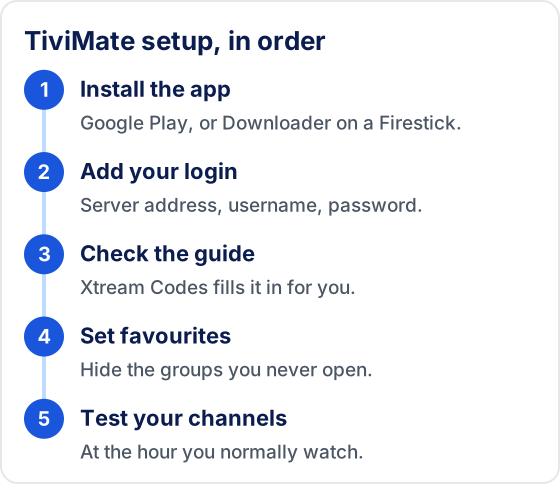
TiviMate setup comes down to five steps in one order: install the app, add your provider's login as a playlist, check the guide has filled in, set your favourites, then test the channels you care about. The app itself carries no channels, so a login has to come from somewhere. Tivimate IPTV, the subscription this site sells, is one such login. It is separate from the app, whose developer we have no connection with.

Read this first.This site sells an IPTV service, Tivimate IPTV, and the five other services we list belong to the same owner. We earn when you buy any of them. TiviMate the app comes from Armobsoft FZE, and we are not its developer and not affiliated with it. We have no copy of the developer’s manual, so menu names can differ in your version. Look for each option by what it does.
Two Things Share This Name
One is a player and the other is what you play in it. The TiviMate listing on Google Play, read on 5 November 2026 and last updated on 22 June 2026, says the app is “a media player only and does not provide any content”, and that “you must add your own playlists”. Our page on the TiviMate player covers what the app is. This page is the running order for getting it working.
What You Need Before You Start
- A suitable device. The listing says TiviMate “is designed for Android TV and remote control navigation” and is not optimised for phones or tablets.
- A login from a provider. The listing names three formats: M3U, Xtream Codes and Stalker Portal. It does not matter to the app who issued the login.
- A way to type. Server addresses are long, and a phone remote app or a keyboard saves a lot of mistakes.
TiviMate Setup in Five Steps
Each step below has a guide of its own, so this section gives the order and what to look for at the end of each.
1. Install the App
Where the app comes from depends on the device. On Android TV and Google TV it is Google Play, and on a Firestick it goes through the Downloader app, since TiviMate is not in the Amazon Appstore. The device-by-device install guide has each route, and the Downloader code page has the Firestick steps. Single-device guides go further, such as TiviMate on the Onn 4K Pro. You are done when the app opens and asks for a playlist.
2. Add Your Login
Choose Add playlist and pick the type that matches what your provider sent. For Xtream Codes that is three fields: the server address in full, with http:// and any port number, then the username and password, which are case-sensitive. You are done when the app checks the login and processes the channel list. Our walkthrough for each playlist type covers the M3U and Stalker Portal routes and the mistakes behind failed logins.
3. Check the Guide
Open the guide grid and see whether programmes appear against your channels. With Xtream Codes the guide address is normally filled in for you, and an M3U login may ask for one. Blank rows are a matter for the guide data, since the app only shows what that data contains. Fixing a guide that will not update goes through it, and our EPG explainer gives the background.
4. Set Favourites and Hide the Rest
Favourites are on the listing’s feature list, and hiding groups you never open makes a long list easier to use. Beyond that, most settings can wait. Our notes on TiviMate settingssay which to change first and which values nobody has tested. We give no “best” buffer size here, because we have measured none.
5. Test Your Own Channels
Search for each channel you care about, and watch at the hour you normally would. A setup can be perfect and a channel still be missing or slow, because that part belongs to the provider. How to run a proper trial sets out what to try before you pay.
Do You Need TiviMate Premium?
Not to get started. The listing says any paid upgrade “unlocks application features only” and includes no channels. Our Premium page sets out which features need it, such as recording, catch-up and multiview, and how to see the price, which the developer does not publish as a single figure. We quote none here.
Using TiviMate with Tivimate IPTV
This is what the owner of this site states about the subscription. Nobody outside has checked it.
- Your login. After payment it is sent to you on WhatsApp. There is no customer dashboard.
- The format. Xtream Codes login details, which go in step 2 above.
- Devices. Plans allow 1–4 connections at once, depending on which you buy, and our terms set out what happens if you go over. Add the login on each device separately.
- Trying it. A 24-hour free trial with no card needed, so you can run step 5 before paying. How to request a trial has the details.
We do not publish the rights agreements behind its channels, so we will not tell you it is licensed, and we name no channel or league here. Plan prices are on the plans page.
Which IPTV Works with TiviMate?
Any service that issues an M3U, Xtream Codes or Stalker Portal login will load, as far as the format goes. That says nothing about quality or rights. The listing is plain that the app “does not endorse the use of illegal content sources”, and our page on TiviMate and the law explains why the app and what you play in it are separate questions. Twelve checks on any seller are worth reading before you pay anyone, us included.
If Setup Stops Working
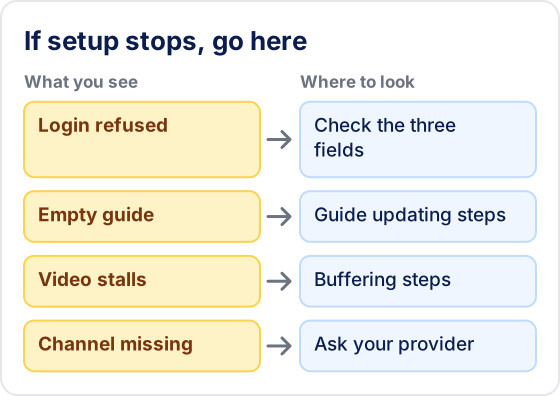
Login problems in TiviMate are usually the three fields, or an account that has ended. For stalling video, try these TiviMate buffering steps. Anything else starts at our symptom list. We do not suggest a VPN to get past a block or a provider’s restriction. A missing channel is one for your provider, because TiviMate supplies none.
Frequently Asked Questions
How do I set up TiviMate?
Install the app, choose Add playlist, enter the login your provider gave you, wait for the channel list to load, then check the guide and set your favourites. On a Firestick the install goes through the Downloader app, because TiviMate is not in the Amazon Appstore.
What is the best IPTV to use with TiviMate?
We cannot honestly name one. We sell one ourselves and own five more, and nothing was tested for this page. The app accepts any M3U, Xtream Codes or Stalker Portal login and is not affiliated with any provider, so the choice comes down to rights, your channels and a trial.
Do I need TiviMate Premium to watch Tivimate IPTV?
No. The free version plays one playlist with the guide grid. Premium adds features such as recording, catch-up and more than one playlist, and it brings no channels with it.
Is Tivimate IPTV the same as TiviMate?
No. TiviMate is a player app from Armobsoft FZE. Tivimate IPTV is the subscription this site sells. We are not the developer and not affiliated with it. You can use either one without the other.
Need a playlist for TiviMate?