
A TiviMate remote is simply the remote of the device TiviMate runs on: the app is built for a TV remote, not a touch screen. To use a tablet or phone as the remote, install the free official app for your TV device, the Fire TV app for a Fire TV or the Google TV app for Google TV and Android TV, and pair it on the same Wi-Fi. TiviMate Companion is not a remote. If the remote stops responding, restart the device and pair it again.
People search for a TiviMate remote for tablet for two different reasons. Some want to steer TiviMate on the TV from a tablet or phone, because the real remote is lost or slow for typing. Others run TiviMate on a tablet and miss the buttons. This guide covers both. It quotes the official help pages of TiviMate, Google, Amazon and NVIDIA, read on November 25, 2026. Where we could not find an official source for how a TiviMate button behaves, we say so, because menus change between app versions.
Why TiviMate Works Best With a Remote
TiviMate was designed around a remote’s arrow keys. Its Google Play listingsays the app “is designed for Android TV and remote control navigation” and that “it is not optimized for touch devices such as phones or tablets.” Everything in it, from the channel list to the TV guide grid and multiview, is reached by moving a highlight with up, down, left and right and pressing the center button.
That has two consequences. On a TV, any remote with a direction pad, a select button and a back button can drive TiviMate. On a tablet, touch may feel awkward on some screens. Neither is a fault in your device. If you are still setting the app up, our guide to installing TiviMate covers every device.
Which Buttons Does Each TV Remote Have?
Every supported box ships with a remote that has the buttons TiviMate needs, plus a few extras that differ by brand. Here is what each maker’s own help page lists.
Fire TV Stick and Fire TV Cube
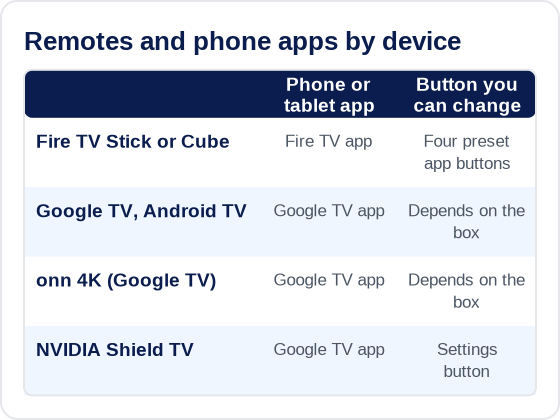
Amazon’s help page for the Alexa Voice Remote (2024 release)lists a navigation ring with Select in the center, a row with Back, Home and Menu, a row with Rewind, Play/Pause and Fast Forward, then Mute, Volume and a Guide button, plus four app buttons whose presets “may vary.” In TiviMate, the ring and Select do the moving and choosing, Back steps out of a screen, and Menu is the button to try when you want options for the channel you are on.
Google TV and Android TV boxes, including onn
Google TV and Android TV remotes vary by box maker, but each has the direction pad, center select, Back and Home buttons TiviMate needs. Walmart’s onn 4K boxes run Google TV, so the same applies to them; our TiviMate on onn 4K Plus guide covers that box in full. Some Android TV remotes have no Menu button, which is why it matters that TiviMate lets you reach options in other ways.
NVIDIA Shield TV
NVIDIA’s Know Your SHIELD TVpage says the Settings button can be changed under Settings > Remotes & Accessories > Customize Settings button. The same page names Devices & Accessories in one section, so look for either label. It also says the remote “has a locator feature” that plays a tune for 10 seconds, which you can trigger from the button on the Shield or from the SHIELD TV mobile app.
What Do the Buttons Do Inside TiviMate?
We could not find a button map published by the developer, so treat this as a starting point to check on your own version, not a fixed list. The direction pad moves between channels, groups and guide cells; Select opens what is highlighted; Back closes the current panel. During playback, try the center button, the left and right arrows and a long press of Select, and note what each one opens.
TiviMate has a settings section for this. Our TiviMate settings guide points to the part that decides what the direction buttons and long presses do during playback, which is worth a few minutes on a remote with few buttons. Some options sit behind TiviMate Premium, so a choice you see greyed out may be a Premium one.
How Do You Use a Tablet or Phone as the Remote?
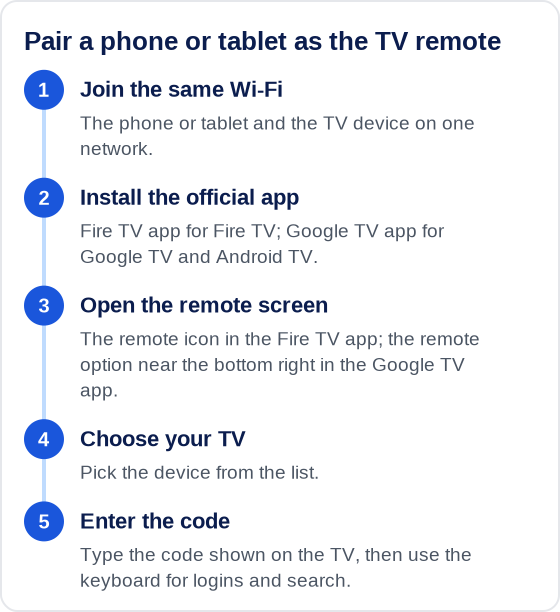
Use the free official app for the device the TV runs on. Both apps pair over your home Wi-Fi, and both give you a keyboard, which is the best reason to use them: typing a playlist address or a login with arrow keys is slow.
Fire TV: the Fire TV app
Amazon’s page Use Your Mobile Device like a Fire TV Remotesays the Fire TV app “allows you to use your mobile device as a remote control.” Connect the phone or tablet to the same Wi-Fi as the Fire TV, install the app, sign in with your Amazon account, select the remote icon and follow the prompts. The page says you can then use the “on-screen navigation, keyboard, and other menu options.”
Google TV and Android TV: the Google TV app
Google’s help page Cast, connect & control your TV with the Google TV appsays the app can “control your Google TV or Android TV” and “enter text to perform searches or enter login information.” On Android, open the Google TV app, tap the remote option near the bottom right, choose your TV, enter the code shown on the TV screen and tap Pair. The page links to separate steps for iPhone and iPad.
What about TiviMate Companion?
TiviMate Companion is not a remote. Its Google Play listing says it is meant to unlock TiviMate Premium on devices without Google Play and to manage your activated devices, and that “it is not IPTV player app.” Our TiviMate Companion guide explains when you need it.
Can You Control TiviMate on the Tablet Itself?
Yes, with touch, but the listing’s warning applies: the app is not optimized for touch screens. If you run TiviMate on an Android tablet and find touch clumsy, a Bluetooth keyboard or game controller with arrow keys can move the highlight the way a remote does, since Android accepts both. We could not confirm that every TiviMate screen responds to them the same way, so try it on the screens you use most. Our page on TiviMate on phones and tablets also covers players built for touch, if you would rather switch.
What If the Remote Stops Working in TiviMate?
First find out whether the problem is the remote or the app. If the remote cannot open the device’s own home screen either, it is the remote or its pairing; if only TiviMate ignores it, it is the app.
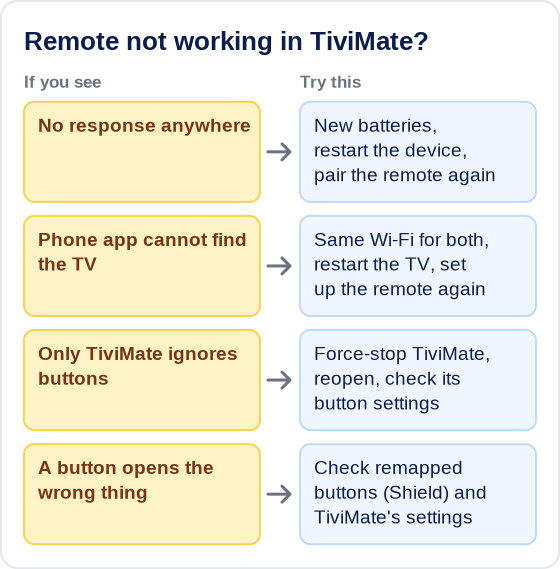
- No response anywhere. Replace the batteries, restart the device from its power plug and pair the remote again from the device’s settings.
- The phone app cannot find the TV. Google’s virtual remote troubleshooting page starts with the same Wi-Fi network for both devices; restarting the TV and setting up the virtual remote again come next.
- Only TiviMate ignores the buttons. Force-stop TiviMate and open it again, then check its remote and playback settings.
- A button opens the wrong thing. On a Shield, check whether the Settings button was remapped. On any device, check TiviMate’s own button settings.
If the remote works but the channels do not load, the remote is not the problem. Our TiviMate not working guide goes through playlist, guide and connection faults in order.
Frequently Asked Questions
Is there a TiviMate remote app?
Not from the developer that we could find. Use the free official app for your TV device instead: the Fire TV app or the Google TV app. TiviMate Companion manages Premium and is not a remote.
Can I use my iPad or iPhone as a TiviMate remote?
Yes, if the TV device has an iPhone app. Google’s help page links to iPhone and iPad steps for the Google TV app, and Amazon says the Fire TV app works on mobile devices. TiviMate itself has no iPhone version that we could find.
Why does my TiviMate remote not work on a tablet?
Because a tablet has no remote. TiviMate is built for remote navigation, and its listing says it is not optimized for touch. A Bluetooth keyboard or game controller can stand in for the arrow keys.
Where These Facts Come From
The TiviMate statements come from its Google Play listing and the TiviMate Companion listing, both by Armobsoft FZE. Remote and app details come from Google TV Help, Amazon’s Fire TV help and NVIDIA’s Shield support pages, all read on November 25, 2026; Amazon’s pages were read through Amazon’s help system because amazon.com refused our reader. Tivimate IPTV is an IPTV service, not the TiviMate app or its developer. If you still need a service to load into the app, our IPTV plans and prices and the free 24-hour trial are on our own pages, and the Tivimate IPTV main page explains who we are.
Need a playlist for TiviMate?